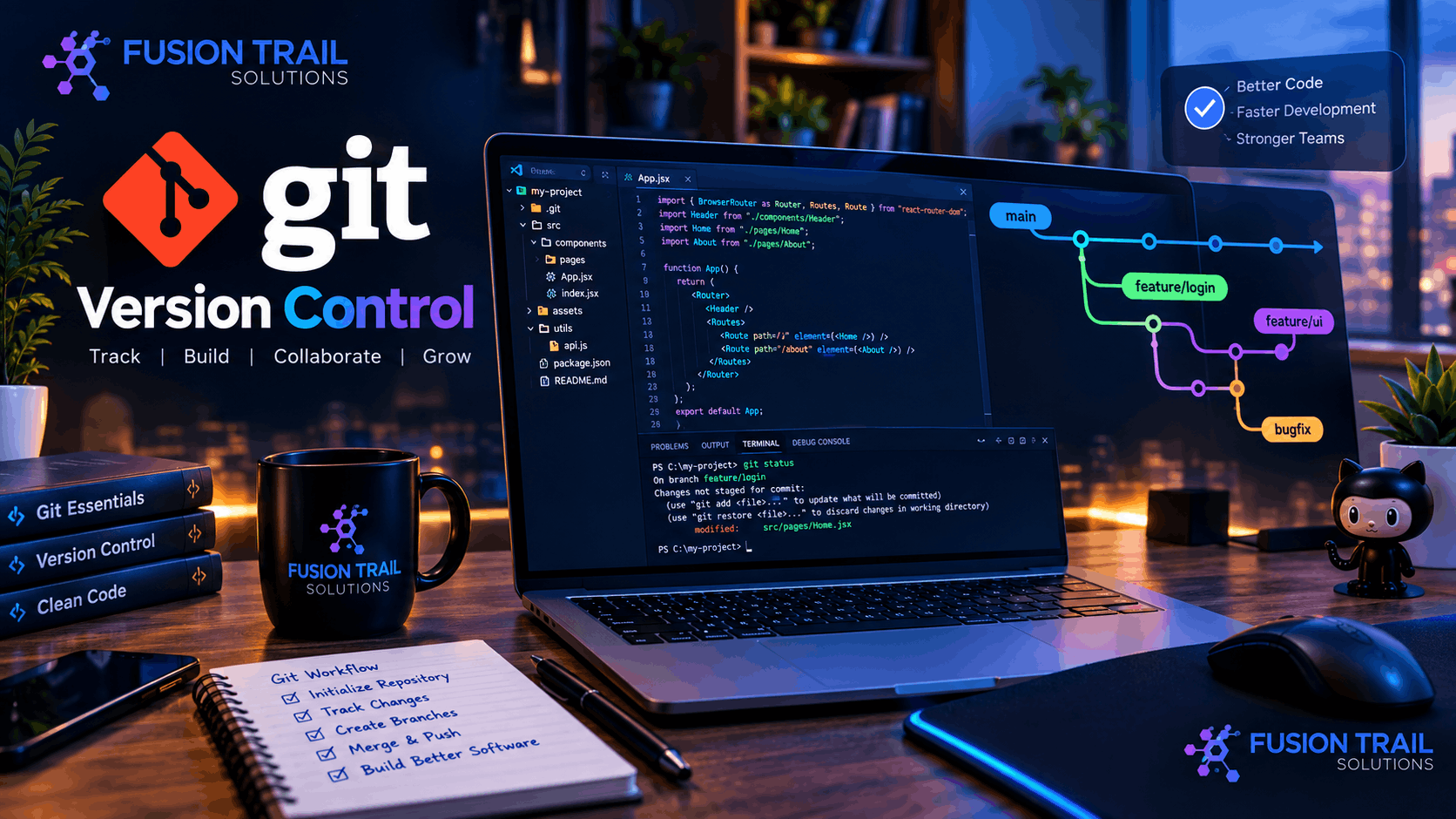
If you are learning web development, software engineering, or programming, you have probably heard the word Git again and again. Git has become one of the most important tools in modern software development because it helps developers track changes, manage code, collaborate with teams, and safely experiment with new ideas.
Whether you are a complete beginner or an experienced developer, understanding Git version control can make your development workflow faster, safer, and more organized.
In this guide, we will explore what Git is, how Git works, the most useful Git commands, Git branching, Git workflows, Git vs GitHub, and practical tips for using Git effectively.
What Is Git?
Git is a distributed version control system (DVCS) that allows developers to track changes made to files and source code.
Instead of keeping multiple copies of a project such as:
website-finalwebsite-final-2website-final-newwebsite-final-new-real
Git allows you to maintain a complete history of your project in an organized repository.
You can see what changed, when it changed, and who made the change. You can also restore previous versions when something goes wrong.
Git is especially popular among web developers, software engineers, DevOps teams, open-source developers, and programming students.
Why Is Git Important for Developers?
Modern software projects can contain thousands or even millions of lines of code. When multiple developers work on the same project, managing changes manually can quickly become complicated.
Git solves many of these problems.
1. Track Every Change
Git keeps a history of changes made to your project.
You can inspect previous commits and understand how the code evolved over time.
2. Work With Other Developers
Multiple developers can work on different parts of the same project without constantly sending files to each other.
3. Create Separate Development Branches
Git branches allow developers to build new features without directly changing the main production code.
4. Recover From Mistakes
If a new change breaks your application, Git can help you identify the problem and return to a previous working version.
5. Support Open-Source Development
A huge number of open-source projects use Git-based workflows, making Git an essential skill for developers who want to contribute to public projects.
Git vs GitHub: What Is the Difference?
One of the most common questions beginners ask is:
Is Git the same as GitHub?
No.
Git is a version control system, while GitHub is a cloud-based platform for hosting and collaborating on Git repositories.
Think of it this way:
Git = technology used to manage code history
GitHub = online platform where Git repositories can be stored and shared
You can use Git without GitHub. You can also use other platforms that support Git repositories.
How Does Git Work?
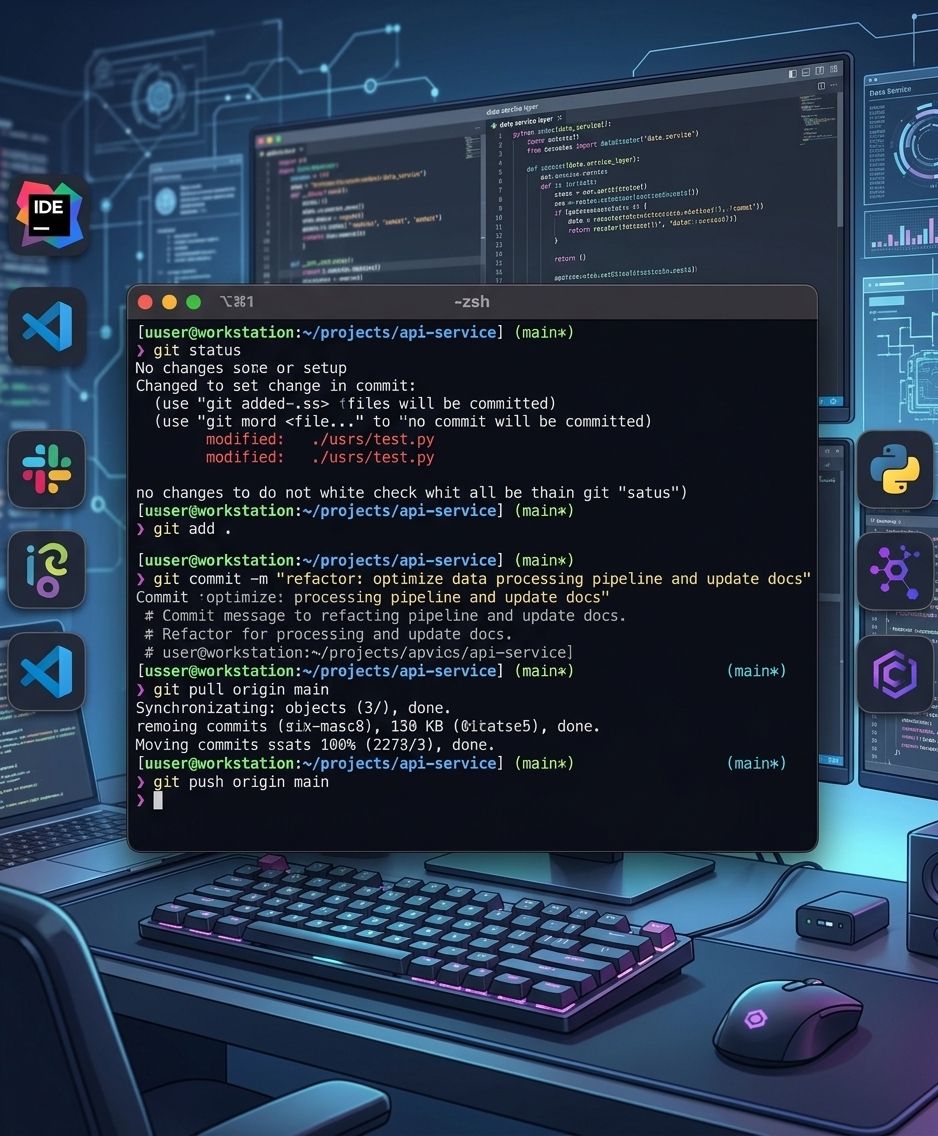
A basic Git workflow usually looks like this:
Working Directory → Staging Area → Repository → Remote Repository
When you modify your files, Git detects those changes.
You then select the changes you want to include using the staging area.
After that, you create a commit, which records a snapshot of your project.
Finally, you can push your commits to a remote repository hosted on a service such as GitHub.
Essential Git Commands Every Beginner Should Know
Learning a few essential commands is enough to start using Git effectively.
git init
Creates a new Git repository in your project.
git init
git status
Shows the current state of your working directory.
git status
This is one of the most useful commands because it tells you which files have been modified, added, or are waiting to be committed.
git add
Adds changes to the staging area.
git add .
You can also add a specific file:
git add index.html
git commit
Creates a snapshot of your staged changes.
git commit -m "Add homepage design"
Good commit messages make project history much easier to understand.
git log
Displays previous commits.
git log
git clone
Downloads an existing remote repository to your computer.
git clone https://example.com/project.git
git pull
Downloads changes from a remote repository and integrates them into your local branch.
git pull
git push
Uploads your local commits to a remote repository.
git push
Understanding Git Branches
Branches are one of Git's most powerful features.
Imagine your main application is working perfectly. You want to add a new login system, but you don't want unfinished code to affect the existing application.
You can create a new branch:
git branch login-feature
Switch to it:
git switch login-feature
Or create and switch to a branch at the same time:
git switch -c login-feature
You can then develop and test your feature independently.
Once the feature is ready, it can be merged into the main branch.
What Is a Git Commit?
A commit is essentially a recorded snapshot of changes in your project.
For example:
git add .
git commit -m "Fix responsive navigation menu"
A useful commit message should explain what changed rather than simply saying:
update
Better:
Fix mobile navigation layout
Clear commit messages become extremely valuable when working on large projects.
What Is a Git Repository?
A Git repository is a project directory tracked by Git.
It contains information about the project's version history, including commits, branches, and other Git metadata.
Repositories can be:
Local repositories
Remote repositories
Public repositories
Private repositories
A developer may work locally and then synchronize the repository with a remote Git hosting platform.
A Simple Git Workflow for Beginners
Here is a practical workflow you can use for everyday development:
git clone <repository-url>

cd project-folder

git status

git switch -c new-feature

# Make your changes

git add .

git commit -m "Add new feature"

git push -u origin new-feature
After pushing your branch, a team can review the changes before they are merged into the main codebase.
Git Merge vs Git Rebase
Two important concepts in Git are merge and rebase.
Git Merge
Merge combines the histories of two branches.
git merge feature-branch
It is straightforward and commonly used in collaborative workflows.
Git Rebase
Rebase moves or reapplies commits onto another base.
git rebase main
Rebase can create a cleaner project history, but beginners should understand how it works before using it on shared branches.
A simple rule is:
Merge is usually easier to understand; rebase requires more care, especially with shared history.
How to Resolve Git Merge Conflicts
A merge conflict happens when Git cannot automatically determine which version of a change should be kept.
For example, two developers may modify the same lines of a file differently.
Git may mark the conflicting section like this:
<<<<<<< HEAD
Your version
=======
Other version
>>>>>>> feature-branch
You need to manually decide which changes should remain.
After fixing the conflict:
git add .
git commit
The key to handling conflicts successfully is understanding the code and reviewing changes carefully rather than blindly accepting one side.
Best Git Practices for Developers
Using Git is easy. Using it well requires good habits.
Write Meaningful Commit Messages
Avoid vague messages such as:
fix
update
changes
new
Instead use messages such as:
Add JWT authentication
Fix responsive dashboard layout
Update API error handling
Improve database query performance
Commit Small, Logical Changes
Avoid putting dozens of unrelated changes into one massive commit.
Small commits make debugging, reviewing, and reverting changes easier.
Use Branches for Features
Instead of making every change directly on the main branch, use feature branches when appropriate.
Pull Before Starting Work
Before working on an existing project, synchronize your local repository with the remote repository.
git pull
Review Before Committing
Use:
git status
git diff
These commands help you understand exactly what you are about to commit.
Git Tips for Beginners
If you are just starting with Git, don't try to memorize every command.
Start with these:
git init
git clone
git status
git add
git commit
git log
git branch
git switch
git pull
git push
git merge
Once these become familiar, learning advanced Git commands becomes much easier.
Git for Web Developers
Git is especially useful for web development projects.
Whether you are working with:
HTML
CSS
JavaScript
React
Next.js
PHP
Laravel
Node.js
Python
WordPress
APIs
Full-stack applications
Git can help you maintain a reliable history of your code.
For example, if a new JavaScript feature breaks your website, you can inspect recent commits and identify when the problem was introduced.
Git in Professional Software Development
Git is not only a beginner tool. It is part of the everyday workflow of many professional development teams.
A typical team may use Git for:
Feature development → Code review → Testing → Integration → Deployment
Combined with CI/CD platforms and development tools, Git can become the foundation of an organization's software delivery workflow.
Git and Version Control: Why It Matters
Version control is about more than saving old copies of files.
A good version control system gives developers the ability to:
Track project history
Collaborate efficiently
Experiment safely
Review code changes
Revert problematic changes
Manage multiple development branches
Maintain a reliable development workflow
That is why learning Git is considered an essential skill for modern developers.
Final Thoughts
Git can look complicated when you first see commands such as commit, rebase, merge, stash, and cherry-pick. However, the basic concept is simple: Git helps you manage and track changes to your code.
Start with the fundamentals—repositories, commits, branches, staging, pulling, and pushing. Once you understand these concepts, you can gradually move into advanced Git workflows.
If you are serious about becoming a web developer, software engineer, DevOps professional, or open-source contributor, learning Git is one of the most valuable technical skills you can add to your toolkit.
The goal isn't to memorize hundreds of Git commands.
The goal is to understand how version control helps you build software more safely and collaboratively.